Take your Ghost publication to the social web.
Prepare your publication’s profile, connect with readers on other servers, and test an article and a conversation before announcing your handle.

For Ghost(Pro), managed hosting, and self-hosted Ghost. Reviewed October 4, 2026. Ghost’s social web documentation still labels the feature beta; use the current instructions for your installation.
Loading your progress…
Mark each checkpoint after trying it on your own site. Your next unfinished step is shown below.
Saved in this browser and connected to your launch checklist. No automatic verification.
Have these ready
- Access to Ghost Admin and the person responsible for your hosting.
- Your public HTTPS domain and a note of the Ghost version you run.
- An account on another Fediverse server, or a trusted reader who can help test.
- A short public article you are comfortable publishing as a real test.
Keep the publication and the receiving account open side by side. The goal is to verify the experience from both ends.
Confirm how your host provides social web.
Where is your site hosted?
Choose your host to see the first steps that apply to you.
Start in Ghost Admin
- 1Open the social web area and complete any onboarding shown.
- 2Confirm that your publication uses a custom domain, without a subdirectory.
- 3Open Profile → Edit Profile and copy your actual handle.
Once your settings are ready, mark the checkpoint beneath these hosting notes to save your progress.
Next: check your domain →Not sure which host you use?
Check your hosting invoice or ask the person who maintains the website. A custom domain alone does not identify the host.
Compare hosting options and technical notes
Ghost(Pro) or another managed host
Open Ghost Admin and look for the social web area. Complete any onboarding shown for your site. If it is absent or fails to load, ask support to confirm that your publication is connected and running a supported version. For a third-party host, ask who operates the ActivityPub service and where to report a delivery problem.
Do not follow an old beta tutorial’s menu path blindly. Ask for instructions that match the version and configuration you actually have.
Self-hosted Ghost
Ghost’s ActivityPub service is separate from the main publishing application. Self-hosters can use Ghost’s hosted service within its usage limits, or run ActivityPub themselves through the Docker Compose tooling. Hosting Ghost alone does not describe which of these paths your installation uses. Ghost currently labels its Docker tooling a preview; check the current instructions and plan a rollback before moving a working site.
The documented hosted-service limits for self-hosters are 2,000 followers, 2,000 followed accounts, and 100 interactions per day. Check the current limits before planning a larger rollout.
Reference: Hosting options and service limits ↗
For the person managing a self-hosted installation
The official Docker guide has a dedicated ActivityPub section and a migration path for Ghost-CLI sites. Use that guide for service configuration rather than a development compose file from an unrelated repository. Review its domain configuration, enable the required service, and check that it remains healthy after restart.
Prepare backups and a rollback plan before changing the hosting stack. Record whether you are using hosted or self-hosted ActivityPub; that determines where delivery diagnostics belong.
Reference: Official Docker installation and ActivityPub setup ↗
You can open the social web area, and you know who operates its service.
Get the domain right before promoting it.
Ghost requires a custom domain for social web. A site under a path such as example.com/blog is not supported. A subdomain such as blog.example.com is a different arrangement from a subdirectory.
Reference: Custom domain requirements ↗
- Open your publication in a signed-out browser and confirm HTTPS works.
- Record the final address after redirects, including whether it uses www or a subdomain.
- Ask your host to check the domain configuration if the public site and profile advertise different addresses unexpectedly.
If you want the handle to use a different domain from the website, treat that as a separate configuration task. Use Ghost’s current custom-handle instructions with your host, then repeat discovery and delivery checks before sharing the new address.
For Docker installations using www, follow the documented Caddy domain configuration. A working article page alone does not prove the federation routes are configured correctly.
Reference: Domain and routing configuration ↗
You have one stable public address, with working HTTPS and intentional redirects.
Copy the real handle and review the profile.
In Profile → Edit Profile, review your social identity. The default handle is @index@yourdomain.com; its first part can be customized. Copy the value your installation shows.
Your site title and description feed into the social profile, so review those in Ghost settings as well as the social profile editor. Use a recognizable publication name, image, and concise description. Explain what readers will receive and who is speaking. If several people publish for the site, agree on the voice of this account before anyone starts replying.
- The publication’s display name.
- The complete @name@domain handle.
- The actual public profile URL, copied from the profile.
These are different pieces of information. Do not build a profile URL by guessing a path from the handle. Check the URL while signed out, and ensure it identifies this publication rather than an unrelated personal account.
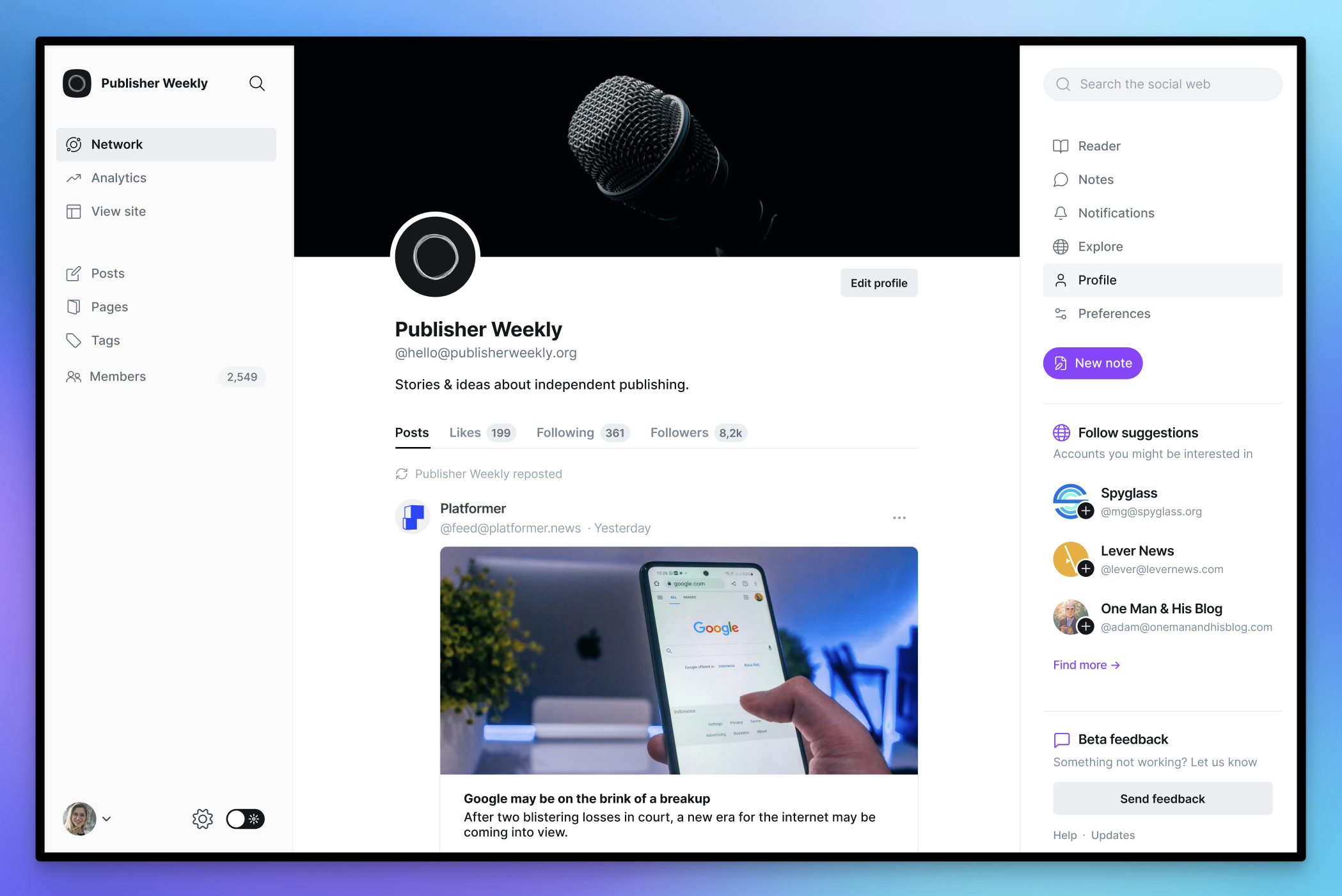
Find your identity in Ghost
- Open Profile in the social web navigation.
- Use Edit profile to review your publication’s identity.
- Copy the complete handle below the name—not just the display name.
You can give someone the full handle and an accurate profile link without explaining your hosting setup.
Follow one account before testing your own.
Explore finds accounts. Reader presents long-form articles; Notes contains shorter posts. Notifications collects social interactions, and Profile shows your publication’s activity.
Reference: Ghost’s social web interface ↗
- Choose a publication or person you already recognize.
- Copy their full handle from a trustworthy page they control.
- Search for that complete handle in Explore and inspect the result.
- Follow the intended profile, then open a post and locate the reply action.
Use this as a short orientation exercise. Being able to read somebody else’s work is useful, but it is not proof that your publication can send posts to followers.
You can distinguish incoming articles, short posts, and notifications, and can find a specific account by handle.
Find your publication from another server.
- Paste your full publication handle into our connection checker.
- Compare the returned profile with the identity you recorded. Save the report.
- In your separate Fediverse account, search for the same full handle.
- Open the result, confirm it is yours, and choose Follow.
- Check that the follow is established before publishing the test article.
The checker reads public discovery and profile information. It cannot establish a follow or prove delivery. If an automated lookup fails, record the error and try the real account lookup before deciding the integration is broken.
Use a receiving account on a different server so the test exercises communication beyond your own hosting environment. Record that server’s name and the time you followed.
The intended publication can be found, and a reader on another server has successfully followed it.
Send a new public article through the whole path.
Create an ordinary new post with a distinctive title, a short paragraph, one link, and optionally an image with alt text. In post settings, choose Public access for this first test. Ghost also supports members-only, paid-members-only, and specific-tier access; those are different reading experiences.
Reference: Post access levels ↗
Use Preview to review the public visitor’s view. In the publishing menu, choose to publish to the website; send an email only if you also intend to notify newsletter subscribers. Ghost lets you publish on the web, send email, or do both. For a scheduled post, check the site timezone and wait until it is actually published.
Reference: Preview, publishing options, and scheduling ↗
Publish after the follow is established. Keep the original article URL and publication time. Inspect the received post rather than assuming that the website preview represents every social app.
What to verify from the reader’s account
- Delivery: the new article appears for the follower.
- Identity: it comes from the intended publication profile.
- Context: the title and received text make sense away from your theme.
- Destination: the article link opens the right page.
- Media: any image and description remain useful.
Allow time for delivery and refresh the receiving app. If the article does not arrive, use the troubleshooting section instead of publishing repeated copies. Do not use whether an old article appears as the success criterion for this test.
A newly published public article arrives, and its links and content work from the receiving account.
Test a reply and a short update separately.
- From the receiving account, use the delivered article’s Reply action to send a short public response.
- Find that interaction in Ghost’s social web area and reply from the publication.
- Return to the other account and confirm the response arrives in the intended thread.
- Write a short test Note, then check how it appears to the follower.
Notes are social posts; Ghost’s guide says they do not currently appear as website posts. Choose an article when the content needs a permanent place in your website’s publication archive.
Do not use your website’s member-comment section as the sole test for social replies. Ghost’s native comments are a member feature, configured through Settings → Membership → Access. Comment access may be limited to all members or paid members, and readers must be signed in.
Reference: Native website comments and member access ↗
Write down where each test conversation appears. If a reply is visible on one server but absent elsewhere, keep both URLs; they are much more useful for diagnosis than “comments don’t work.”
You have tested a social reply in both directions and know where Notes and website comments belong in your workflow.
Give readers a clear choice of how to subscribe.
Add your tested handle and profile URL to a Follow page or your About page. The follow-link builder can produce a simple HTML link or plain text for your site and newsletter.
Follow our publication on the Fediverse: search for [your full handle] in your app, open our profile, and choose Follow. Prefer email? Use our newsletter signup on this website.
Replace the placeholder with your actual handle. Ask someone who did not help with setup to try the instructions. Make the newsletter link lead to your real signup flow.
Social followers and Ghost members are separate audiences. A social follow does not itself create a newsletter subscription or paid membership. Use distinct labels for the two actions.
Your website tells readers how to follow socially and how to join the newsletter without confusing the two.
Diagnose the failed step.
These are suggested checks, not a claim that every failure has the same cause. Change one variable at a time and keep the failing example.
There is no social web area in Admin
Record your Ghost version and hosting provider. Ask whether your site has the necessary service configured, who operates it, and whether onboarding is incomplete. For a self-hosted setup, compare the configuration with the official installation documentation. Installing a theme or adding a follow button cannot enable a missing service.
Reference: Hosting and ActivityPub services ↗
The handle cannot be found
Re-copy it from the publication’s profile. Compare the domain with the final public site URL. Try both the checker and a lookup from another account, recording which one fails. If the domain recently changed, give support the old and new addresses and the time of the change.
For a custom proxy or CDN, ask the administrator to verify discovery and profile routes rather than only testing the homepage. A challenge page or a redirect to the wrong service can leave ordinary articles working while profile discovery fails.
The follow is pending or the article never arrives
Record whether the problem happens on one receiving server or more than one. Confirm the account followed the publication before the new article was published. Check the post’s publication state, access level, and whether you selected web publication rather than email only.
Give the host the receiving profile, article URL, and timestamps. Ask for delivery errors from the ActivityPub service. Do not borrow WordPress-specific scheduler fixes for a Ghost installation.
The article arrives, but looks incomplete
Compare the original page with the received content. Identify exactly what is missing: a title, image, link, embedded media, or essential explanation. Repeat with a short text-and-link post to isolate whether a particular card or media format is involved. Make the main point understandable without an interactive embed.
Check your post’s reading experience →Replies are missing, or follower counts do not match members
For replies, inspect the original social thread and Ghost’s social view. Confirm the test was a reply to the delivered post, not a separate mention. For member comments, check the member’s login state, configured comment access, and theme support using Ghost’s comments documentation.
Compare like with like in your notes: a social follow, a free membership, a paid subscription, and an email subscription are different actions. Verify each with its own test instead of using a single audience count as proof.
Reference: Website comment requirements ↗
Prepare a useful support report
- Public site URL, exact handle, Ghost version, and hosting provider.
- Hosted or self-hosted ActivityPub, if known.
- Receiving account/server and the specific article or reply URLs.
- Follow and publication times, with timezone.
- Expected behavior, observed behavior, and whether a second account reproduces it.
- The checker report and relevant error messages, with secrets removed.
Use your managed host’s support channel for installation-specific problems. For community help, use the Ghost forum. Keep passwords, API keys, member records, private preview links, and unrelated logs out of a public report.
Make the connection part of publishing.
Choose who monitors incoming social conversations and who speaks for the publication. Keep a short record of the accounts and apps used in your successful test. Repeat that test after a domain change, hosting move, or substantial configuration update.
If you publish protected material, test a representative protected post separately. Inspect what a signed-out visitor and a social reader can see, including any teaser, title, or image. Do not assume that a successful public-article test establishes how every access level behaves.
Before changing hosts or the service behind your handle, ask how the profile identity and follower relationship will be preserved. A database or content export should not be assumed to cover the separate ActivityPub service automatically.
After launch: You have an owner for replies, a documented working test, and a plan to recheck it after changes.
Common questions
Do I need a separate Mastodon account?
You can use a trusted reader’s account for testing. Having your own account on another server is convenient because you can inspect the reader’s experience whenever you update the publication.
Will followers automatically get my newsletter?
No. Keep the email signup action explicit and test it separately. Do not describe a Follow link as an email subscription.
What should I test first: an article or a Note?
Start with the format you intend to publish most often. This guide begins with an ordinary public article, then tests a Note separately so a success in one format is not mistaken for proof about the other.
Will every platform show exactly the same thing?
Do not promise identical rendering or interactions. Test the apps that matter to your readers, and record limitations. A readable article with a working canonical link is a better launch criterion than perfect visual parity.
Does a green checker result mean everything works?
It confirms only the public discovery checks it describes. Finish the external follow, new-article, and reply tests before marking the launch checklist complete.
Ready means a reader can complete the journey.
They can find the publication, follow it, receive a fresh article, open its link, and join a conversation. Your website explains the difference between following and subscribing.
Save what you have verified.
Use the launch checklist to record the steps you tested and download a copy for your publication’s notes.
Open your launch checklistFound an outdated instruction?
Record the step, what you see instead, and your platform version. Do not include passwords or private information.
This is a personal correction draft you can download. It is not a contact form and does not send anything to Highly Distributed.
Sources & scope
The linked Ghost references describe the product and hosting requirements. The checkpoints and test sequence are our suggested workflow. We have not tested your specific installation; verify features against your current version.
Social web manualHosting optionsDocker installationPublishingProtected contentMember comments