Make your WordPress blog followable.
Connect your publication to the Fediverse, choose the identity readers should follow, and prove that a new post and reply can travel between servers.

For self-hosted WordPress and WordPress.com. Reviewed October 4, 2026. Menu labels can vary by plugin version and hosting setup.
Loading your progress…
Mark each checkpoint after trying it on your own site. Your next unfinished step is shown below.
Saved in this browser and connected to your launch checklist. No automatic verification.
Have these ready
- Administrator access to your WordPress site and a current backup.
- A public HTTPS site, plus permission to install plugins if using the plugin path.
- A decision about what may be published publicly: start with an ordinary blog post.
- A Fediverse account on another server, or a trusted reader who can help test.
You do not need to operate a Mastodon server. The other account is a way to see your publication as a reader would.
Use the path that matches your site.
Where is your site hosted?
Choose your host to see the first steps that apply to you.
Connect with the ActivityPub plugin
- 1Install and activate ActivityPub by Automattic from Plugins → Add New.
- 2Open Settings → ActivityPub and complete setup.
- 3Choose the blog or author profile readers should follow.
Once your settings are ready, mark the checkpoint beneath these hosting notes to save your progress.
Next: choose your profile →Not sure which host you use?
Check your hosting invoice or ask the person who maintains the website. A custom domain alone does not identify the host.
Compare hosting options and technical notes
Self-hosted WordPress
In your dashboard, open Plugins → Add New. Search for ActivityPub by Automattic, install it, and activate it. Open Settings → ActivityPub and complete the available setup. If you cannot install plugins, ask your site administrator or host.
Reference: Official plugin installation instructions ↗
WordPress.com
Open Settings → ActivityPub and choose Join the Open Social Web. On a plugin-enabled site, install and activate the ActivityPub plugin first. Sites without plugins use the blog profile; plugin-enabled sites can also use individual author profiles.
If your dashboard does not match, check the current WordPress.com instructions for your site rather than buying a plan or installing another integration on the assumption it is required.
Reference: WordPress.com setup ↗
You can open ActivityPub settings and see the profile your site will use.
Choose what readers are following.
The plugin can expose a blog-wide profile and individual author profiles. The blog profile represents the publication across authors; an author profile represents that writer’s posts.
A publication people subscribe to
Prefer the blog profile when the promise is “follow everything this journal publishes.” This is usually the clearest invitation for a magazine, project blog, or single-publication brand.
Writers with separate audiences
Prefer author profiles when readers should choose individual writers. On a multi-author site, agree on naming and who is responsible for each profile before promoting it.
Copy the exact full handle shown in your settings. Do not construct it from your display name. Blog and author profiles are separate identities; test and share the same one.
An illustrative handle: @writer@example.com
The name before the second @ and the server after it both matter. This example is not your account.
Reference: Blog and author profiles ↗
You have recorded one intended profile, its full handle, and its public profile link.
Give readers enough context to trust the follow.
Review the profile details exposed by your setup. Use a recognizable name and image, a short description of what you publish, and a link back to your site. For an author profile, inspect that user’s profile settings as well as the plugin settings.
- Say whether this is a publication or a person.
- Explain the subject and approximate publishing rhythm, if you have one.
- Open the profile link while signed out to check what a stranger can see.
- Keep the handle in your notes separate from the human-readable display name.
For author profiles, an SEO plugin that disables or redirects author archives can interfere with discovery. Restore the archive if needed; search-engine indexing can be managed separately. The blog profile requires working rewrite rules.
Reference: Author archives and rewrite requirements ↗
The profile that readers will find clearly identifies the publication or writer you intend.
Start with one deliberate public post.
Review the post types and content format offered by your ActivityPub settings. Begin with ordinary posts before enabling pages or custom content types. Use the Fediverse preview if available.
In the editor’s Fediverse visibility controls, Public shares publicly, Quiet public avoids public timelines, and Do not federate keeps that post off federation. Private and password-protected WordPress posts are not public federation content. Quiet public is still public.
Reference: Publishing and visibility controls ↗
For a first test, write a short paragraph with a distinctive phrase, one normal link, and optionally an image with useful alt text. Avoid subscriber-only material. Review the outgoing preview for missing context, unwanted boilerplate, or an excerpt that ends mid-thought.
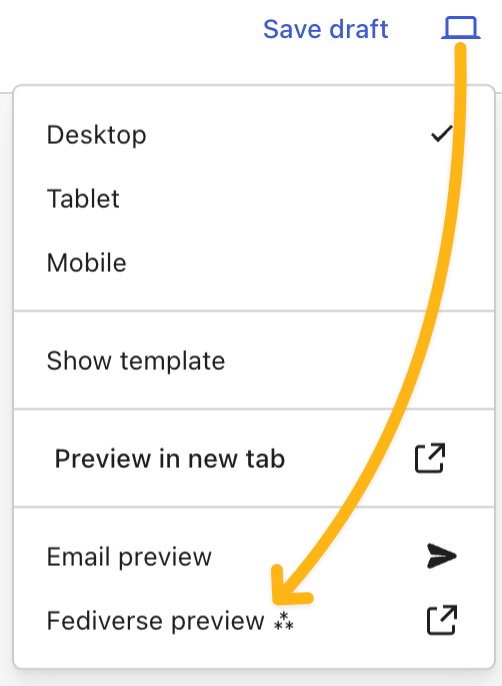
Preview before you publish
- Open the preview menu in the editor.
- Choose Fediverse preview, when available.
- Check that the outgoing text and media make sense away from your website.
You know which profile and post will be shared, and the preview contains only material you intend to make public.
Check that another service can find you.
- Paste your full handle into the connection checker.
- Confirm the returned name and profile match your chosen identity.
- Copy or download the report so you have a timestamp and the result.
- Open Tools → Site Health in WordPress and investigate ActivityPub or scheduled-task warnings.
Our checker reads public discovery and profile information. It does not send a follow, deliver a post, or verify ownership. A blocked automated request can produce an inconclusive result even when a signed request from another server works. Continue with the real-world test below.
A public lookup finds the intended profile, or you have documented why the automated check is inconclusive and can find it from another server.
Make the follow before publishing the test.
- In your second account’s app, paste the full WordPress handle into search. Allow time for a remote lookup.
- Open the result and compare the name, website, and handle with your notes.
- Choose Follow. Check that it becomes an established follow rather than staying requested.
- For the plugin, inspect Users → Followers for the author, or Settings → ActivityPub → Followers for the blog profile.
The plugin accepts follows automatically. A request stuck as pending is a communication problem, not an approval task waiting for you. If WordPress knows about the follower but the other server still shows pending, investigate outgoing delivery and scheduled tasks.
Reference: Follow requests and the return confirmation ↗
The reader’s account shows an established follow for the correct profile. Then publish a new post.
Test the whole loop, not just the profile.
Publish your prepared test post after the follow is established. Keep its original URL and publication time. Do not use the appearance of an old article as your delivery test: enabling federation does not automatically distribute your archive to new followers.
Allow time for processing; WordPress.com notes that delivery can take up to about 15 minutes. A longer delay needs investigation rather than repeated duplicate posts.
Inspect it from the receiving account
- Arrival: the new post appears in the account’s home feed.
- Identity: the sender is the blog or author profile you meant to share.
- Text: the title, excerpt or body still makes sense away from your theme.
- Links: the article link opens the intended public page.
- Media: the image and its description are understandable in that app.
Use the received post’s Reply action to send a short public reply. Look in WordPress Comments, including Pending and Spam, then approve it if your moderation policy requires that. Reply from WordPress and check whether the conversation returns to the reader.
A standalone mention is not the same as a reply to a post. Quotes and private mentions also should not be used to test ordinary public comments.
Reference: How federated replies become comments ↗
You have observed a new post arrive and tested a reply in both directions. Note any limitations instead of assuming every app behaves identically.
Put the tested handle where readers will see it.
Add a Follow section to your About page, article footer, or navigation. The plugin includes a Follow me on the Fediverse block. You can also use our follow-link builder to create plain text or HTML using your real handle and profile URL.
Follow this publication on the Fediverse. Search for [your full handle] in your app, open our profile, and choose Follow. New public articles will appear in your feed.
Replace the bracketed text with your tested handle. Ask someone who did not help with setup to try the instructions. This catches unclear wording and accidental links to your personal account.
A reader can follow using only the instructions on your website.
Find the point where the connection stops.
Change one thing at a time and repeat the same test. Keep timestamps so your host can find the relevant requests.
The profile cannot be found
Re-copy the exact handle. Check Site Health and whether an author archive is redirected. Ask your host to verify public WebFinger discovery and the advertised profile URL. If the website loads normally but federation fails, the profile’s machine-readable response may still be blocked or incorrectly cached.
More discovery checks →The follow stays pending
Check whether the follower appears in WordPress. If absent, inspect incoming inbox requests and firewall logs. If present, inspect scheduled tasks and outgoing requests. Ask your host for the failing endpoint and HTTP status; a narrow configuration fix is more useful than turning off site protection. After an administrator resolves the cause, the reader may need to cancel the pending request and follow again before you publish a fresh test post.
Reference: Maintainer’s pending-follow checklist ↗
The profile works, but new posts do not arrive
Confirm the follow existed before publication, the post permits federation, and you published under the intended author. Compare the blog profile with the author profile to rule out following the wrong identity. Check Site Health for scheduler failures; a queued message cannot arrive until the delivery task runs.
Reference: Scheduled tasks and outgoing requests ↗
Replies disappear
Check Comments → Pending, Spam, and Trash. Review comment restrictions and overly broad disallowed-word rules. Form CAPTCHA or anti-spam integrations can reject server-delivered replies; ask the plugin provider about ActivityPub compatibility. Confirm the test was a public reply to the received post, not a new post mentioning your handle.
Reference: Maintainer’s missing-comments checklist ↗
Caching, a CDN, or a security plugin is involved
Give your host the exact profile URL and ask them to compare a browser request with an ActivityPub request. The latter must receive the appropriate JSON, not a cached page or challenge screen. Also ask whether inbound requests to the ActivityPub REST routes and outgoing HTTPS connections are allowed.
Use the maintainer’s caching guide for product-specific configuration. Do not apply a global cache or firewall bypass as a permanent fix.
What to include when asking for help
- Your public site URL, full handle, and whether you use the blog or author profile.
- WordPress and ActivityPub plugin versions, hosting provider, and relevant cache/security plugins.
- The receiving server, test post URL, and follow/publication timestamps with timezone.
- Whether the follower appears in WordPress; whether the reply appears in any comment queue.
- The checker report, Site Health findings, and relevant HTTP status codes.
Remove passwords, tokens, private email addresses, and unrelated log entries. Share public diagnostics in the plugin support forum; use your host’s private support channel for server-specific details.
Keep a small, repeatable check.
Keep your successful test URL and profile details in your launch notes. Repeat the follow, new-post, and reply test after a domain change, hosting move, major plugin update, or cache/security change. Recheck the public Follow page after any profile rename.
Decide who reviews incoming comments and how often. Federation adds a route into the conversation; it does not remove the need for moderation.
If you want to stop sharing, review your integration’s disconnect instructions first. WordPress.com offers a leave option for sites without plugins; plugin sites can deactivate ActivityPub. Stopping future delivery should not be treated as a guarantee that every remote copy has disappeared.
Reference: Disconnecting a WordPress.com site ↗
Common questions
Will this post to my existing Mastodon account?
No. This integration makes the WordPress publication followable as its own identity. If your goal is to publish copies to an existing personal account, that is a separate workflow. Clearly distinguish those accounts on your Follow page.
Do old articles appear for new followers?
Do not expect an automatic archive import into their home feeds. Use a newly published post after following for verification. Readers can still visit your website to browse your archive.
Should I enable both the blog and author profiles?
Only if you have a clear reason to offer both. Choose a primary follow destination first. Otherwise a reader may follow one profile while you test or promote the other.
Is a successful checker result enough to launch?
No. It demonstrates public discovery at a moment in time. Finish the follow, new-post, and reply tests, and record any platform limitations before promising a workflow to readers.
What if WordPress is installed in a subdirectory?
Do not assume the handle uses the installation path. Copy the advertised handle and consult the maintainer’s subdirectory setup guide. Give your host both the public site address and WordPress installation address when investigating routing.
You are ready when the reader’s experience works.
The right profile is discoverable, a follow completes, a fresh post arrives, a reply is handled, and your website gives readers a clear way to join.
Keep your launch checks together.
Record the steps you have actually verified, and download the checklist for your notes.
Open your launch checklistFound an outdated instruction?
Record the step, what you see instead, and your platform version. Do not include passwords or private information.
This is a personal correction draft you can download. It is not a contact form and does not send anything to Highly Distributed.
Sources & scope
This walkthrough combines the official references linked alongside each section with our suggested testing workflow. We have not tested your individual WordPress installation. Screens and capabilities may change; use the current documentation for your installed version.
ActivityPub pluginWordPress.com guidePending followsMissing comments